Ashbyk img alt text dissapear
Learn how to accelerate candidate reviews by using AI to evaluate applicants based on custom criteria. This feature helps your team identify top talent faster by automating the initial resume screening process directly within Ashby.
Permissions & Access
- Plans: Available on Foundations, Legacy Plus, Plus, and Enterprise.
- Permissions: You must be an Org Admin to enable the feature. To edit job-level criteria, you need Elevated Access - Admin or Elevated Access - Admin Private for that specific role.
- This is an opt-in feature that must be turned on. You can opt-in by navigating to Admin > Organization Setup > Opt-In Features and enabling AI-Assisted Application Review.
Step 1: Enable AI-assisted application review
- Navigate to Admin > Organization Setup > Opt-In Features.
- If Enable AI Features is not enabled, turn it on it now. You will need to accept Ashby's terms for AI Features to continue.
- Then, enable AI-Assisted Application Review from the list of available AI feature tiles.
Step 2: Define your review criteria
Criteria that you add to the job defines what the AI assesses. You can define resume criteria that the AI looks for within a candidate's resume as well as whether the candidate answered specific application form questions.
To define your criteria, navigate to Jobs > Jobs and select a job. In the job settings, navigate to the AI Features tab and select Set up criteria.
Resume criteria
In the Resume criteria section, you can add criteria in multiple ways: add criteria suggested by AI based on the job posting, add previously used criteria from other jobs, or add custom criteria that you create for this role specifically.
To start adding criteria select + Add criteria under the Resume criteria section.
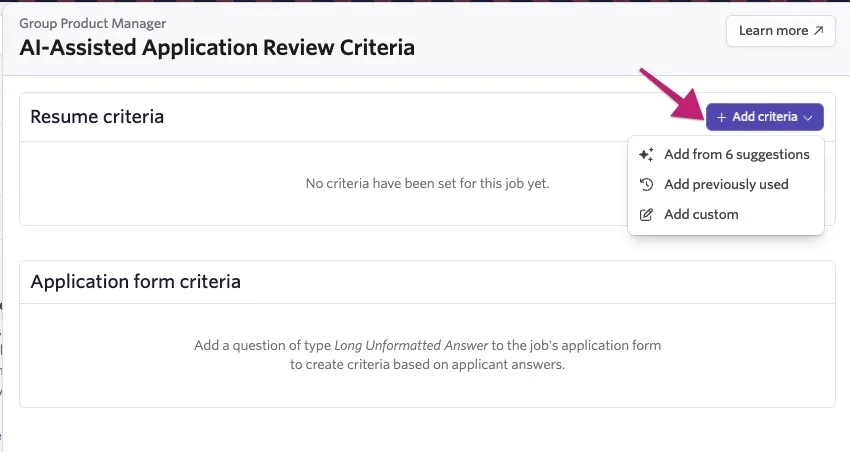
Add suggested criteria or previously-used criteria
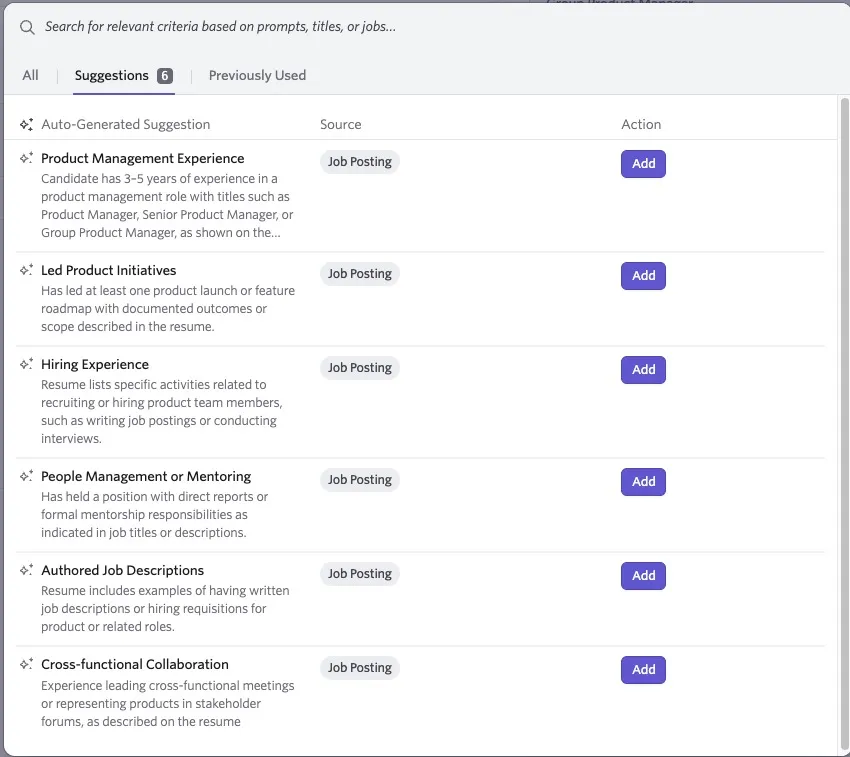
Select Add from # suggestions for suggestions generated by AI based on your job posting. You can also reuse criteria from other roles you have permission to access by selecting Add previously used.
To add a suggestion, select Add in the Action column.
Creating effective custom criteria
Selecting Add custom instead of the suggested or previously-used options allows you to create your own criteria. You'll need to define the following:
- Short title: The name of your criterion. This appears in job settings, the application review page, and as a filter name.
- Prompt: The instructions used to evaluate applicants. Precise and clear prompts result in better AI performance.
Tips on criteria effectiveness
Write your criteria as if you were instructing a junior recruiter. Ensure the prompt is phrased so that any reader would reach the same conclusion.
- Stand-alone: Criteria should be understandable without extra context. Instead of "Can assimilate feedback," use "Effectively incorporates feedback related to personal job performance."
- Singular: Focus on one skill per requirement. Instead of "Experience in Python and AWS," create two separate criteria for each.
- Clear: Avoid vague terms like "technical background." Specify the exact expertise required.
- Specific: Use measurable requirements, such as years of experience or specific previous job titles.
- Objectively verifiable: Ensure the requirement can be proven by looking at a resume. Instead of "has good taste," use "has led design for consumer SaaS products."
Application form criteria
You can evaluate whether a candidate answered long-form application questions in the Application Form Criteria section.
Toggle the Did the Application answer the question? option for individual questions. These are added as criteria for the review process.
This check only determines if the question was answered. Blank or unrelated answers are flagged as not meeting the criteria. This is only available for long, unformatted text fields.
Step 3: Validating and reviewing criteria
Once you have set up your criteria, it must be validated. Ashby checks your prompts on two dimensions:
- Clarity and objectivity to ensure that the criteria is clear and objective which means it can be appropriately evaluated by the AI.
- Equal Employment Opportunity (EEO) violations: the AI also scans for implicit or explicit EEO violations and flags them.
Validating criteria
To validate your criteria, select Validate. If all criteria pass validation, you'll see a pop-up indicating that. Hit Close and proceed to the next section on Saving criteria and evaluating candidates.
If the system identifies issues, select Review Criteria on the pop-up to view warnings.
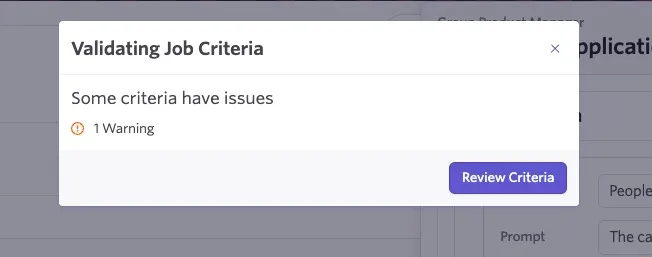
Reviewing flagged criteria
The flagged criteria will be identified with a warning. Select Show details under any warning to review why the criterion was flagged.
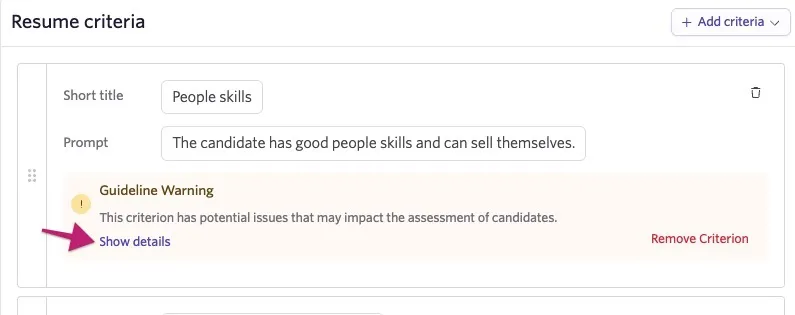
We recommend to either update the criterion until it is no longer flagged, or remove the criterion all together before proceeding.
You can proceed with flagged criteria but it is not recommended.
Step 4: Saving criteria and evaluating candidates
After validation is successful, select Save and Evaluate all active candidates to begin the initial evaluation. Depending on the number of candidates, this can take a few seconds to a few minutes.
You'll see a loading screen with the total number of candidates being evaluated and a progress status bar.
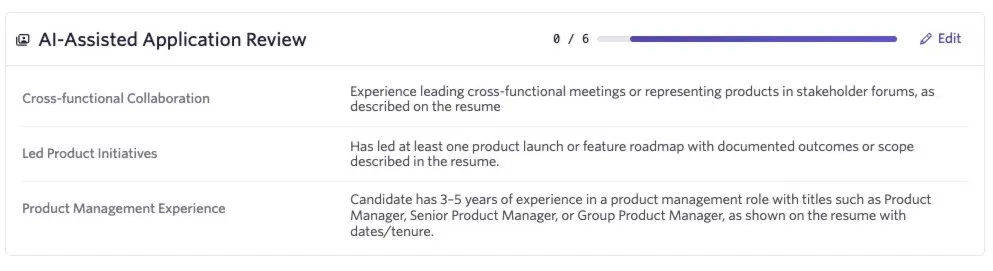
If you are updating existing criteria, select Save and re-evaluate all active Job Considerations once you've made your updates.
Review candidate evaluations
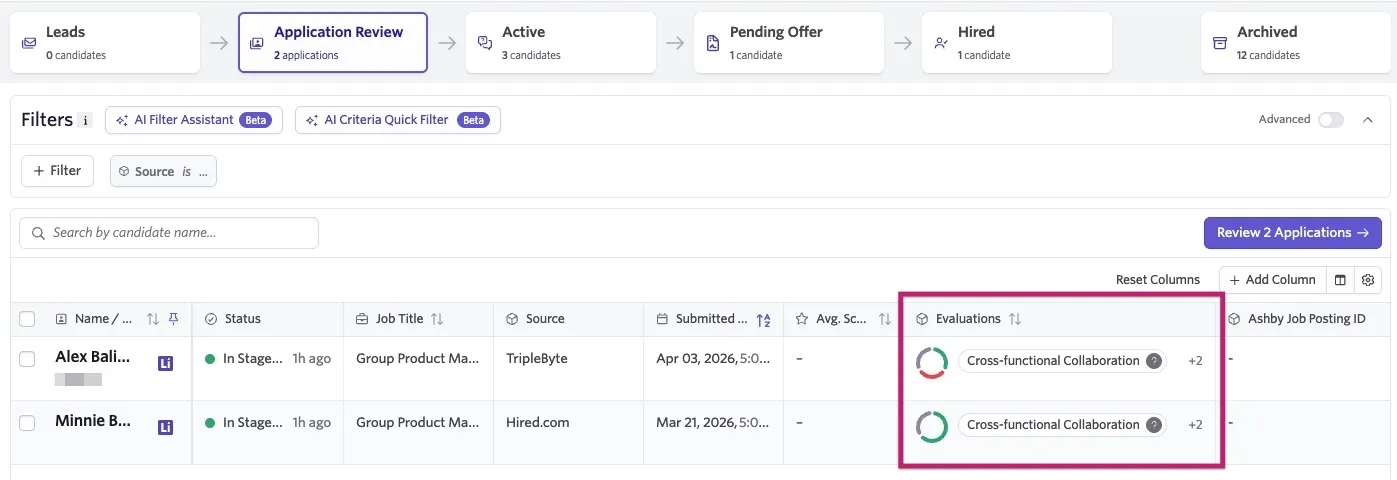
Ashby's AI assesses candidate resumes against each specific criterion and returns an evaluation status. The status may indicate the candidate meets, does not meet, or the AI was undecided on the criterion. Evaluation results can be seen on the candidate profile, as well as in the Application Review stage of the candidate pipeline for the role.
Viewing results on the candidate profile
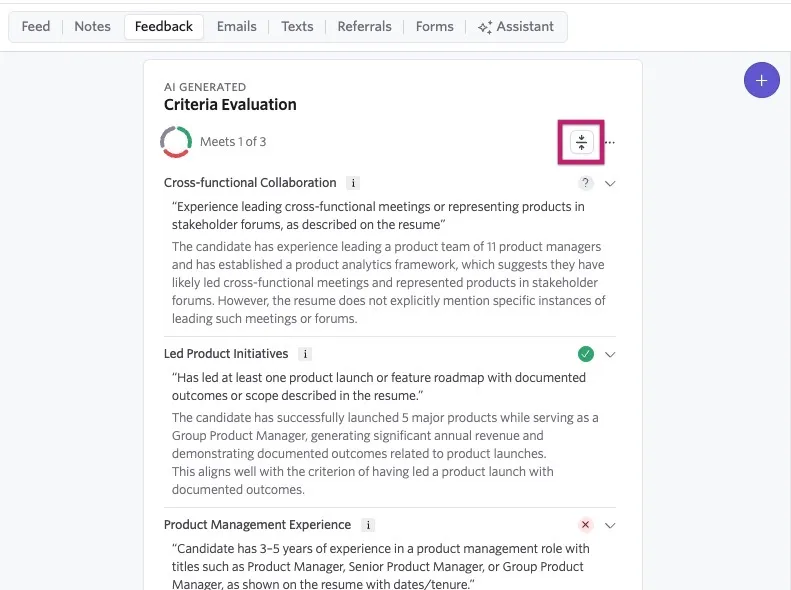
View full evaluations in the Feedback tab of a candidate profile.
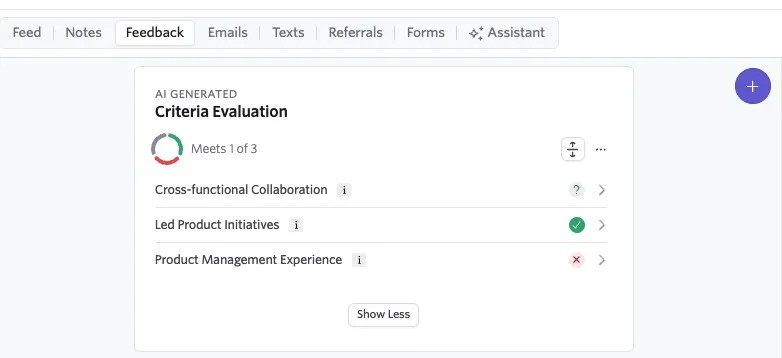
Click on any criterion to see the reasoning for a status of meets, does not meet, or undecided. Select the expand all icon to see reasoning for all criteria at once.
Evaluation results in Application Review
The Application Review stage of the pipeline shows a column for evaluation results that provides a summary about how the candidate scored. Hover over the results row to see more details.
Filtering by AI criteria
You can filter candidates by their evaluation status within your pipeline stages:
- Select the AI Criteria Quick Filter option.
- Select the criteria and statuses you want to view, such as any candidate who passed or the AI was undecided on a particular criteria.
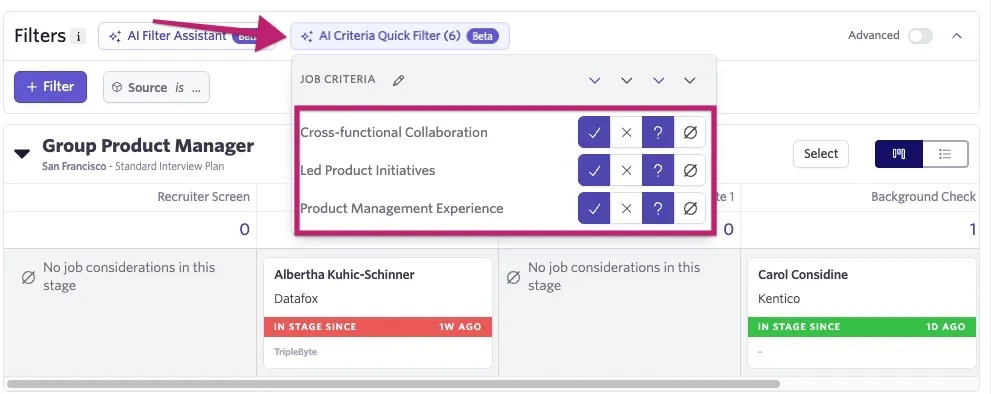
- Perform bulk actions on the filtered list as needed.
Automated processing legal notice
You can configure a message to display to candidates who may be impacted by automated AI review processes by following the steps below.
- Navigate to Admin > Data Management > Data Privacy and Compliance > Privacy & Legal to configure a legal notice for candidates.
- Locate the Automated Processing Legal Notice section and click on the Legal Notice for All Jobs that is displayed.
- Configure the settings for when this message will display:
- Is Enabled?: When off, candidates do not see the notice.
- Rule Scope: Set criteria here when you want the message to show only based on certain criteria, such as for certain jobs only. Do not add a scope if you want it to apply to all jobs.
- Hide Scores: If enabled, AI-informed scores are hidden from users if the candidate hasn't seen the notice.
- Legal Notice Text: The specific text displayed to candidates. This can be edited.
- Hit Save once you've adjusted the settings as needed.
Candidate experience
Candidates see a Learn More link under the Submit Application button. Clicking this allows them to view the notice, opt-out of automated processing, or check whether they have already opted-out. You can view what this page looks like by selecting View in the top right corner when setting up the message.
AI credits
AI-Assisted Application Review is priced per credit. One credit equals one evaluation of a single candidate (job consideration), supporting up to 50 criteria per evaluation.
Additional credits can be purchased in blocks. For more information, see our guide on .
FAQ
If I edit my criteria, can I re-evaluate candidates?
Yes. If you edit a prompt or change criteria, select the Save and Re-Evaluate all active Job Considerations option to refresh evaluations.
Can I flag AI evaluations if they are incorrect?
Yes. Select the three dots in the top-right corner of an evaluation to flag it as incorrect or misleading.
Can I add evaluations as a column in Application Review?
Yes. Select Add Column on the application review page and choose Job Consideration > Criteria > Evaluations.
What permissions are needed to edit job criteria?
You must have Elevated Access - Admin or Elevated Access - Admin Private for the specific role, or be an Organization Admin.
Does the AI evaluate education and work history if there is no resume?
Yes, if the information is listed on the candidate's Ashby profile, the AI considers it.